PowerShell Switch Statement
In PowerShell, the switch statement is used for conditional branching based on the value of an expression. It allows you to compare a given value against multiple possible values and execute different code blocks depending on the match.
Syntax
Here's a detailed explanation of the switch statement in PowerShell:
"value1" {
# Code to execute if $expression matches "value1"
}
"value2" {
# Code to execute if $expression matches "value2"
}
# Additional cases can be added as needed
default {
# Code to execute if none of the cases match
}
}
Syntax Explanation
- $expression: This is the value that you want to compare against multiple cases.
- Cases: Each block within the switch statement represents a case. It begins with a value (e.g., "value1") followed by a code block in curly braces {}. If the value of $expression matches any of the cases, the corresponding code block is executed.
- default case: This is optional and provides a block of code to execute if none of the specified cases match the value of $expression.
Example 1 – Finding Out the Day of Week
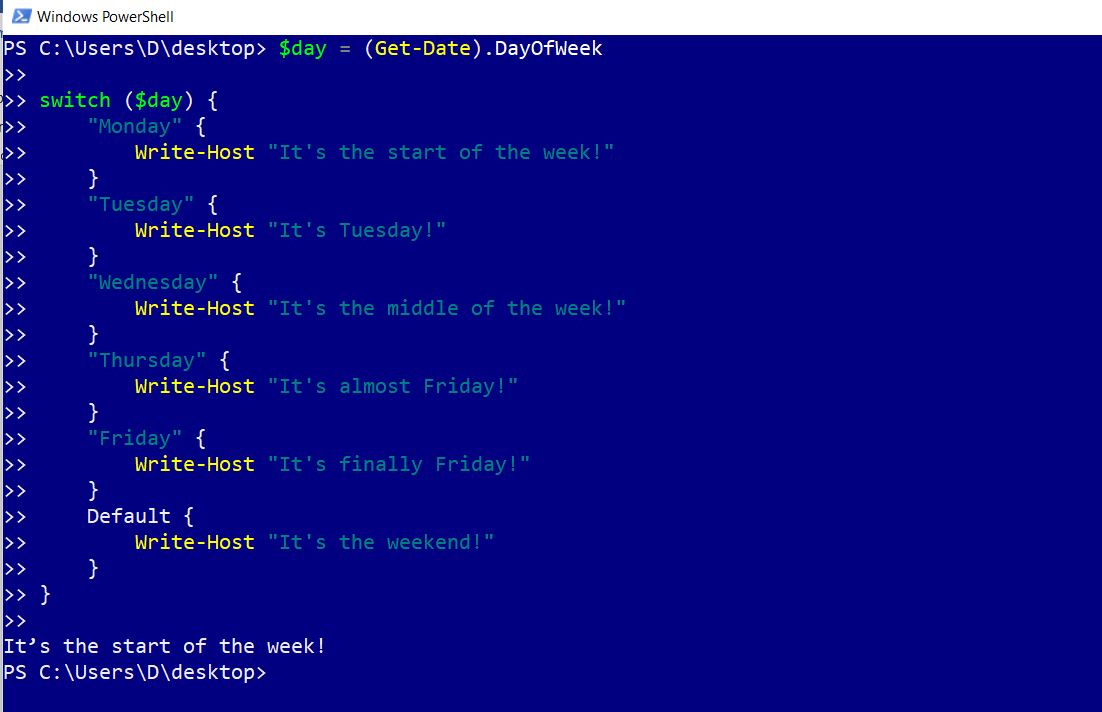
This example passes the current day of the week to the PowerShell switch statement. Different responses are configured for each day of the week within the Switch statement. The one that matches the current day gets printed on the console.
switch ($day) {
“Monday” {
Write-Host “It’s the start of the week!”
}
“Tuesday” {
Write-Host “It’s Tuesday!”
}
“Wednesday” {
Write-Host “It’s the middle of the week!”
}
“Thursday” {
Write-Host “It’s almost Friday!”
}
“Friday” {
Write-Host “It’s finally Friday!”
}
Default {
Write-Host “It’s the weekend!”
}
}
The output should look something like this.
Example 2 – Grading Student Score
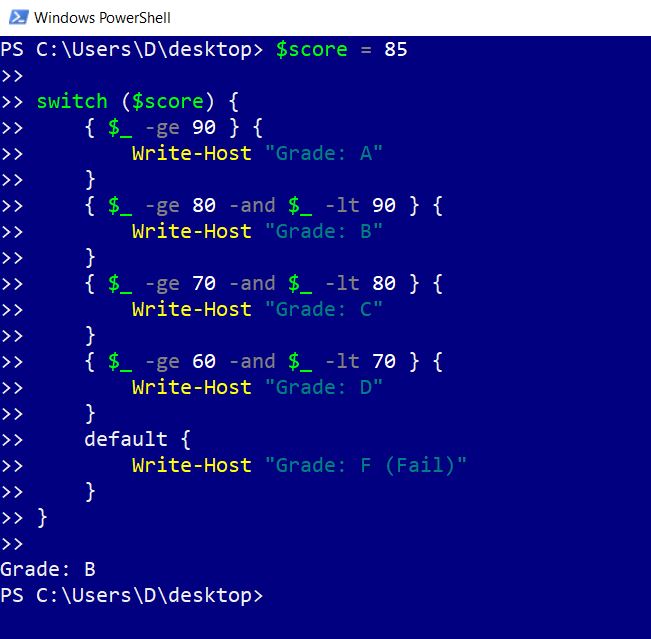
This example grades the provided score depending on different switch conditions that make use of -ge and -lt operators. The condition that covers the range within which the provided score falls gets executed.
switch ($score) {
{ $_ -ge 90 } {
Write-Host "Grade: A"
}
{ $_ -ge 80 -and $_ -lt 90 } {
Write-Host "Grade: B"
}
{ $_ -ge 70 -and $_ -lt 80 } {
Write-Host "Grade: C"
}
{ $_ -ge 60 -and $_ -lt 70 } {
Write-Host "Grade: D"
}
default {
Write-Host "Grade: F (Fail)"
}
}
The output should look something like this.
Example 3 – Checking Whether Windows Services are Working or Not
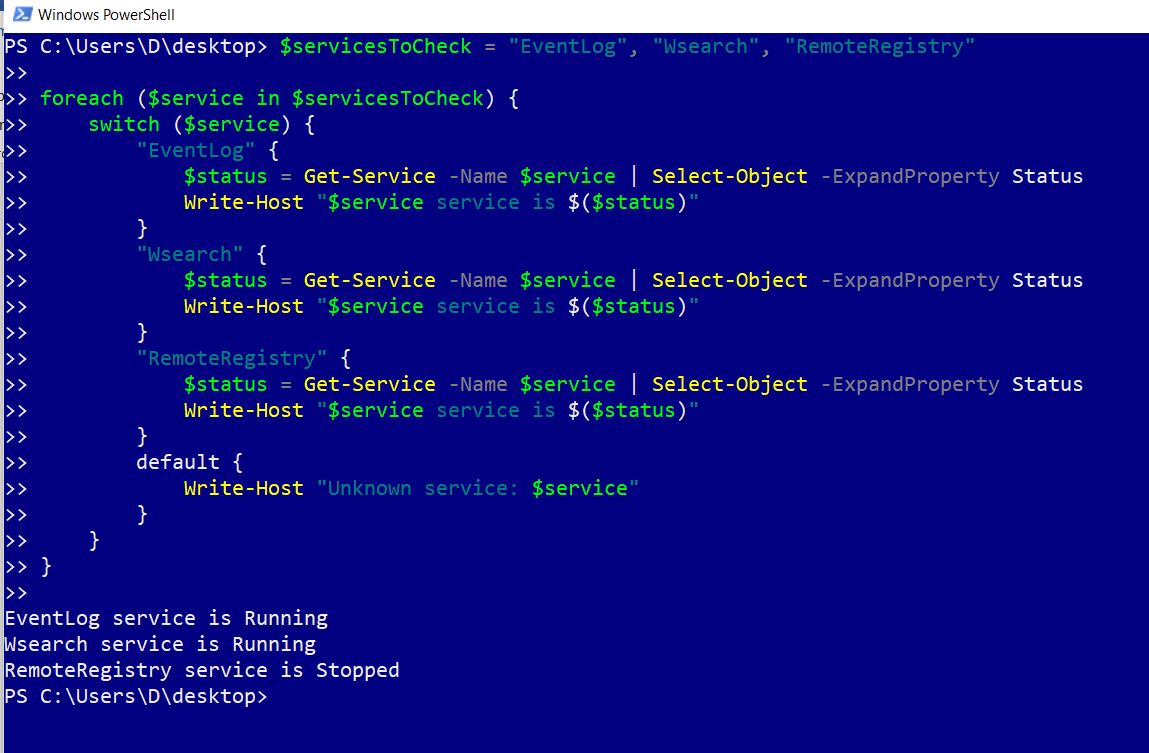
This example illustrates how the switch statement can be nested within a foreach statement. The below script checks whether a specific list of windows’ services is running or not. First, the list of services is looped through and each of the service being looped through is passed to the switch statement. Then the switch condition that matches service checks whether the service is running or not and prints the same on the console.
foreach ($service in $servicesToCheck) {
switch ($service) {
"EventLog" {
$status = Get-Service -Name $service | Select-Object -ExpandProperty Status
Write-Host "$service service is $($status)"
}
"Wsearch" {
$status = Get-Service -Name $service | Select-Object -ExpandProperty Status
Write-Host "$service service is $($status)"
}
"RemoteRegistry" {
$status = Get-Service -Name $service | Select-Object -ExpandProperty Status
Write-Host "$service service is $($status)"
}
default {
Write-Host "Unknown service: $service"
}
}
}
The output should look something like this.