Managing Folders and Files with Windows PowerShell
In this article, let’s take a look at the PowerShell cmdlets that help you work with folders and files. We’ll begin with retrieving a list of existing folders/files using the Get-ChildItem cmdlet, then focus on how you can filter the obtained results, and finally move on to how you can create/delete files and folders.
Retrieving files and folders using Get-Item and Get-ChildItem cmdlets
You have two cmdlets that help you with retrieving folder and file information: Get-Item and Get-ChildItem. Get-ChildItem is more useful than Get-Item, as Get-ChildItem helps you retrieve info about sub-folders residing within the parent folder as well.
Using Get-Item
The syntax for Get-Item is:
This above code works if you are in the directory within which the folder resides. If not, you’ll have to pass the full path of the folder to the -Path parameter as shown below:
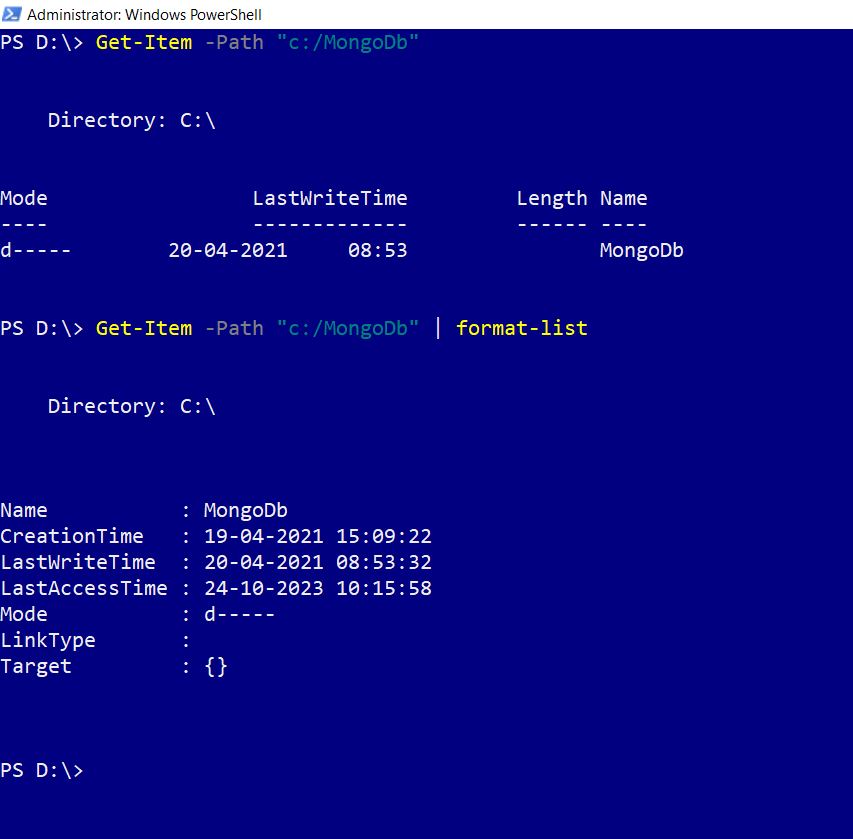
Remember that output of Get-Item cmdlet would be minimal unless you pipe the result through to some other command (like format-list) to extract more information about the folders/files you are querying as shown in the image below.
Using Get-ChildItem
The syntax for Get-Item is:
This above code works if you are in the directory within which the folder resides. If not, you’ll have to pass the full path of the folder to the -Path parameter as shown below:
Remember that output of Get-ChildItem cmdlet would be minimal unless you pipe the result through to some other command (like format-list) to extract more information about the folders/files you are querying as shown in the image below.

Get-Item Vs Get-ChildItem
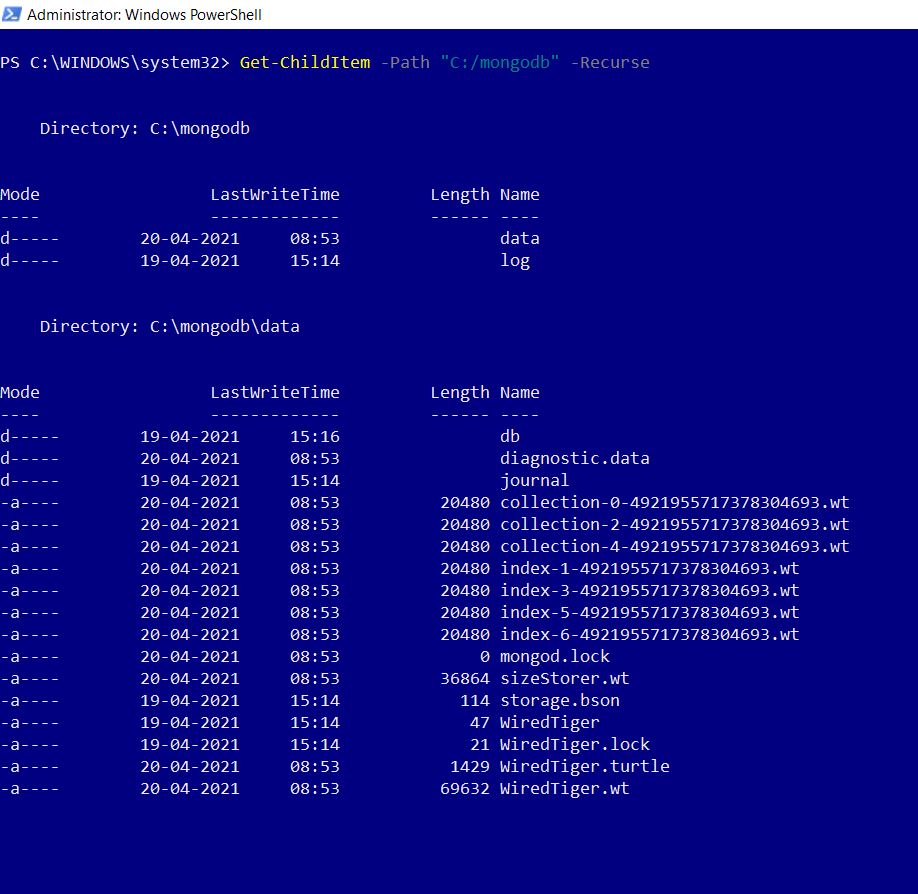
Get-Item queries for specific folder (or file info). Get-ChildItem queries for the sub-folders/files that reside within a given folder. The major difference between the two cmdlets is that with Get-ChildItem cmdlet, you get to pass the -Recurse parameter, which pulls out not just the sub-folders, but all the children that reside within these sub-folders as well as shown in the image below.
Filtering the results obtained
Querying for information returns large amounts of data. So you have to apply filters to get what you are looking for. Some of popular ways of doing this are:
Using the -filter parameter:
The simplest way to filter the data being returned is to make use of the -filter parameter.
Searching for files of specific pattern:
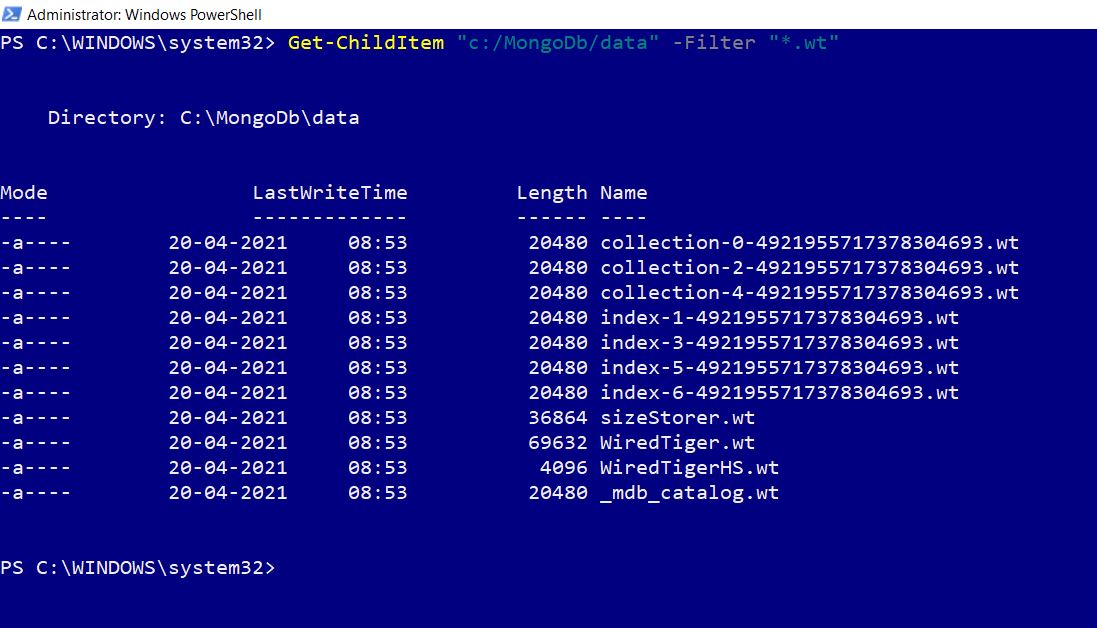
You can look for files ending with a common extension (like .txt for example) by passing the ‘.txt’ value to -Filter parameter, along with the wild card * as shown in the image below.
Note: * implies select all; in our case it is fetch all files ending with extension a common extension.
The syntax is:
Searching for a specific file:
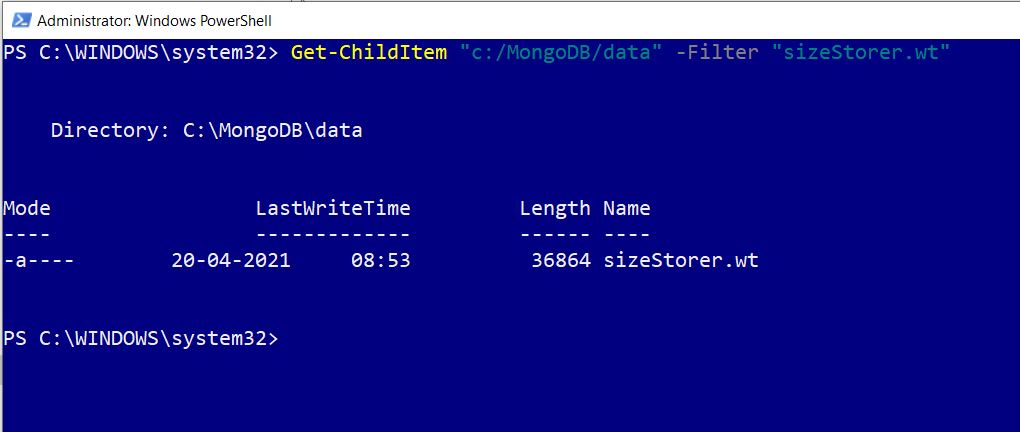
If you are sure of the file name, then you just need to pass it to the -filter parameter to get the details of the file as shown in the image.
The syntax is:
Using the Where-Object cmdlet:
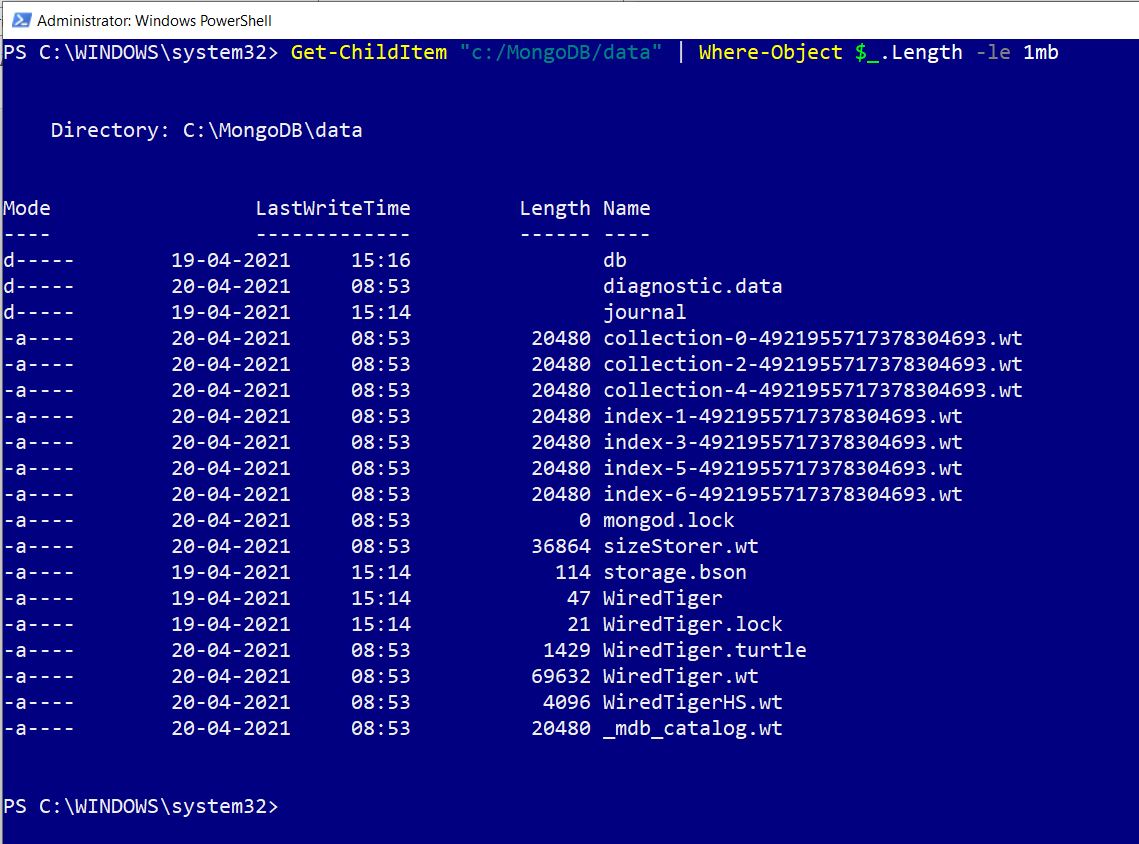
The Where-Object receives the data passed and filters it based on the conditions you set. For example, you can set a condition like get only those files whose size is less than 1mb as shown in the image.
The syntax is:
Note: $_. represents every individual that is being piped or looped through.
Using -Recurse with -Filter:
Recurse with filter can be pretty effective. Because filter looks for files/folders directly under the folder you specify in the path. Whereas -Recurse also looks for files/folders present in the sub-folders too, as shown in the image.
The syntax is:
Note: The cmdlet looks for all files ending with .js extension within the path you specify

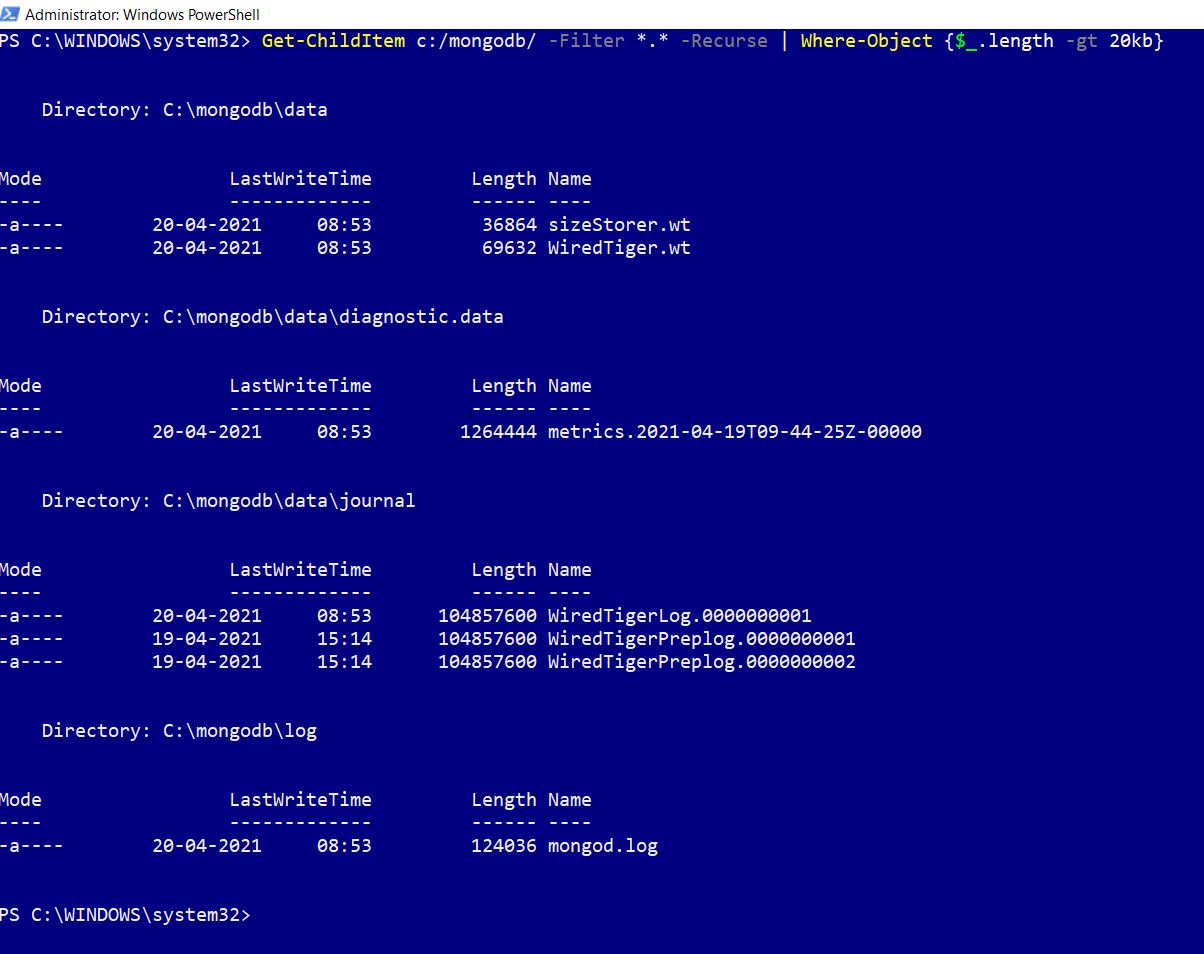
Using -Recurse with Where-Object:
Recurse with Where-Object can be pretty effective. Because Where-Object looks for files/folders directly under the folder you specify in the path. Whereas -Recurse also looks for files/folders present in the sub-folders too, as shown in the image.
The syntax is:
Note: The cmdlet looks for files within the specified path whose length is greater than 20kb.
Creating files and folders using New-Item cmdlet
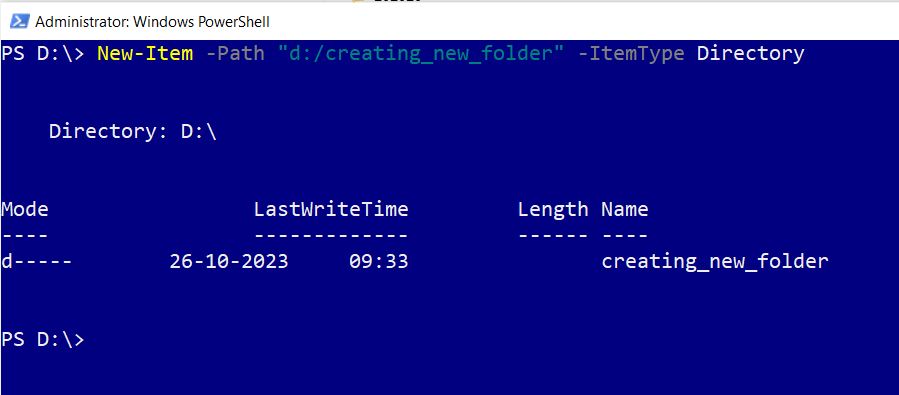
New-Item cmdlet helps you create new files and folders. You have to specify -Path where you want the folder to be created, along with the -ItemType details. – ItemType property helps you specify whether the item being created is a directory (folder) or file as shown in the images.
Creating Folders
The syntax for creating folder is:
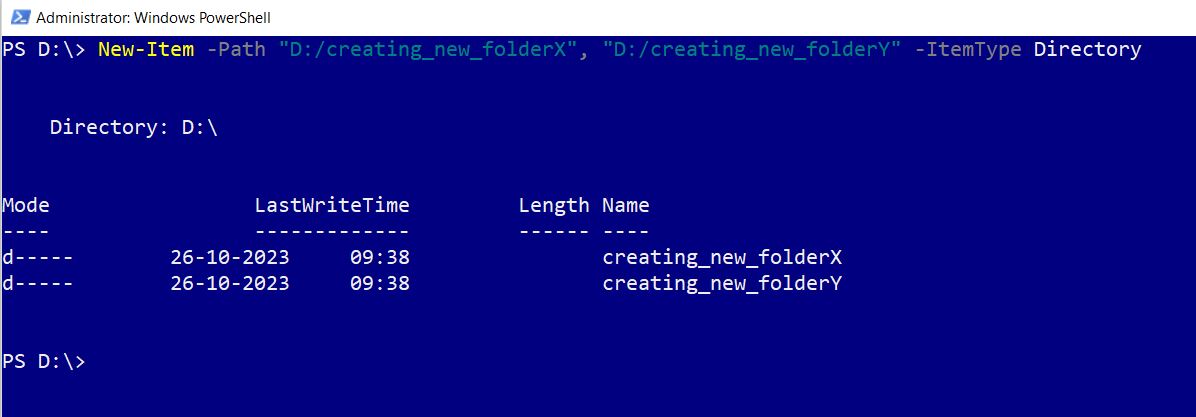
Note: You can also create multiple folders in one go by passing in the folder paths separated by a comma as shown in the image.
Creating Files
The syntax for creating file is:
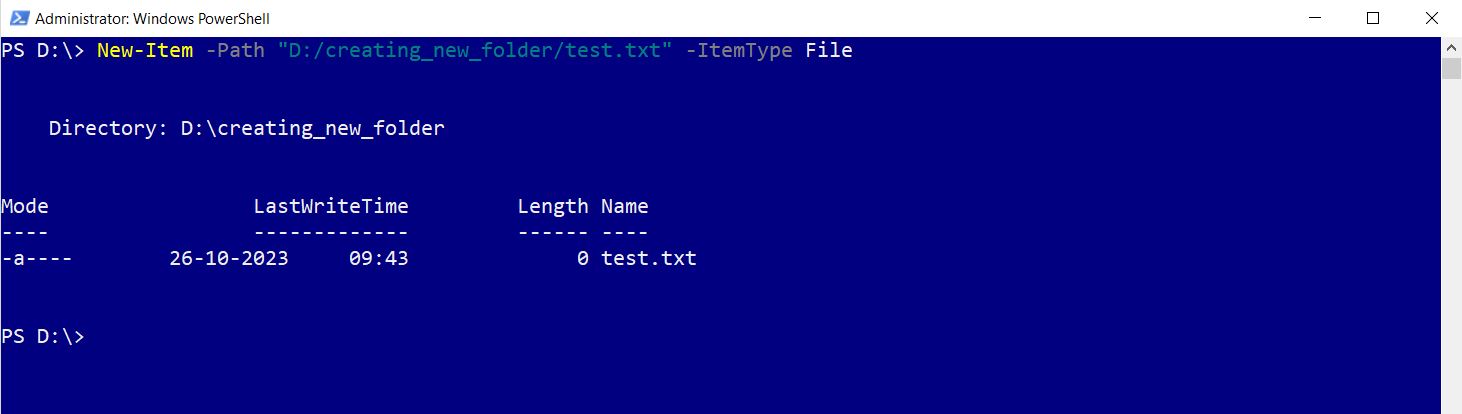
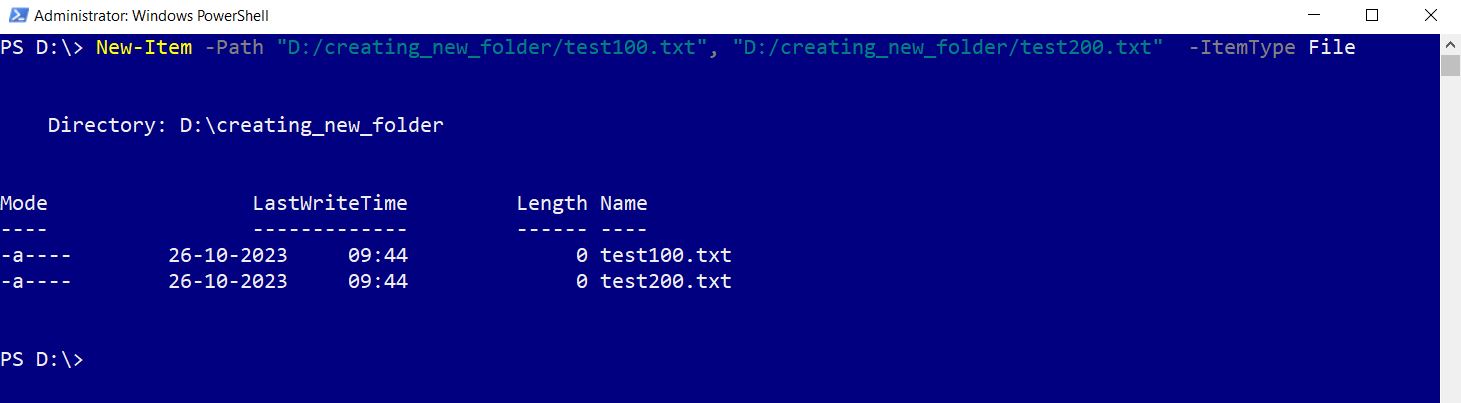
Note: You can also create multiple files in one go by passing in the file paths separated by a comma as shown in the image.
Copying files and folders using Copy-Item cmdlet
Copy-Item cmdlet helps you copy files and folders. You should pass the path of the folders/files to be copied to -Path parameter and the path to which the folders/files are to be copied to the -Destination path as shown in the images.
Copying a single file
The syntax is:
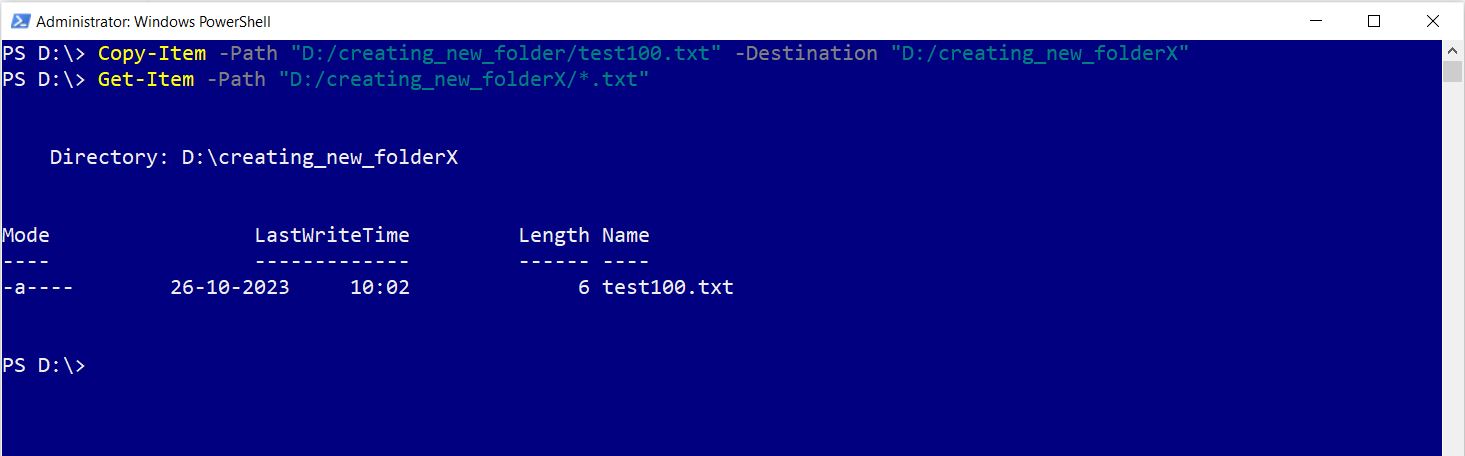
Note:
- You can use Get-Item cmdlet to check whether the file was copied or not as shown in the image above.
- Ensure the -Destination folder already exists. If not, cmdlet will throw errors.
Copying multiple files of same pattern
The syntax is:
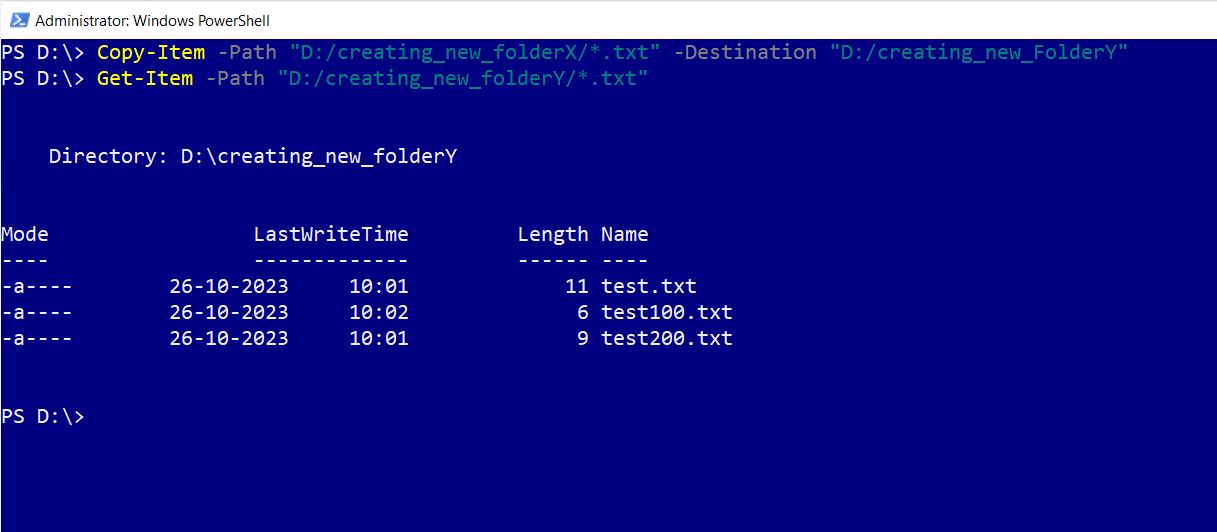
Note:
- You can use Get-Item cmdlet to check whether the file was copied or not as shown in the image above.
- Ensure the -Destination folder already exists. If not, cmdlet will throw errors.
- In this example, all files ending with .txt extension are being copied.
Moving files and folders using Move cmdlet
Move-Item cmdlet helps you move files and folders. You should pass the path of the folders/files to be moved to -Path parameter and the path to which the folders/files are to be moved to the -Destination path as shown in the images.
Moving a single file
The syntax is:
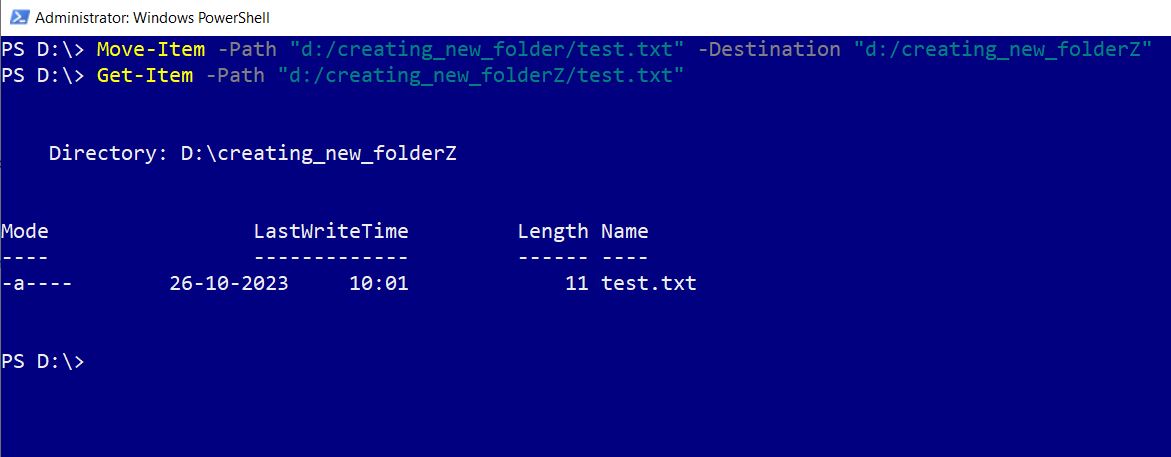
Moving multiple files of same pattern
The syntax is:
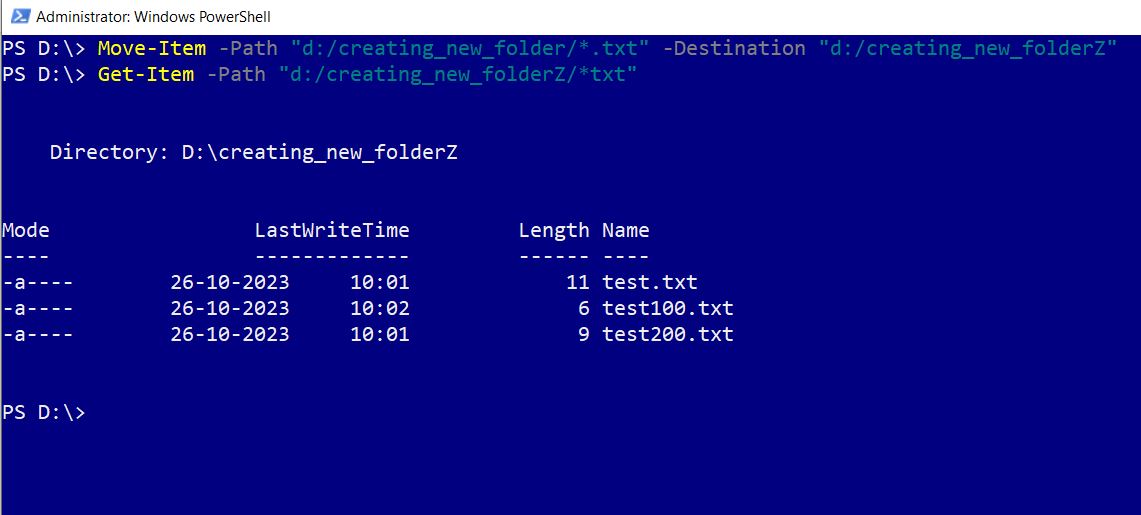
Note: Since you are moving files, source folder no longer contains the files that were moved.
Deleting or removing files and folders using Remove cmdlet
Remove-Item cmdlet helps you delete your files and folders. You should pass the path of the folders/files to be deleted to -Path parameter as shown in the images;
Note: Since you are deleting files, you may be required confirm your action.
Deleting a specific file
The syntax is:
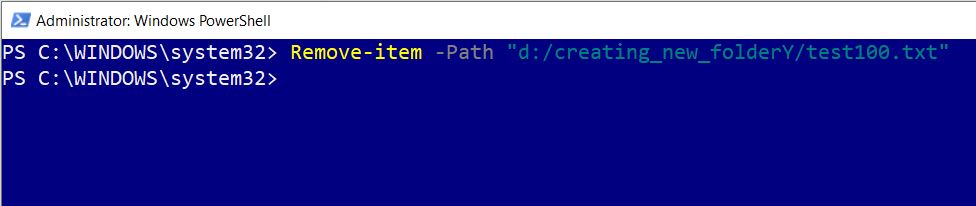
Deleting all files of same pattern
The syntax is:



